

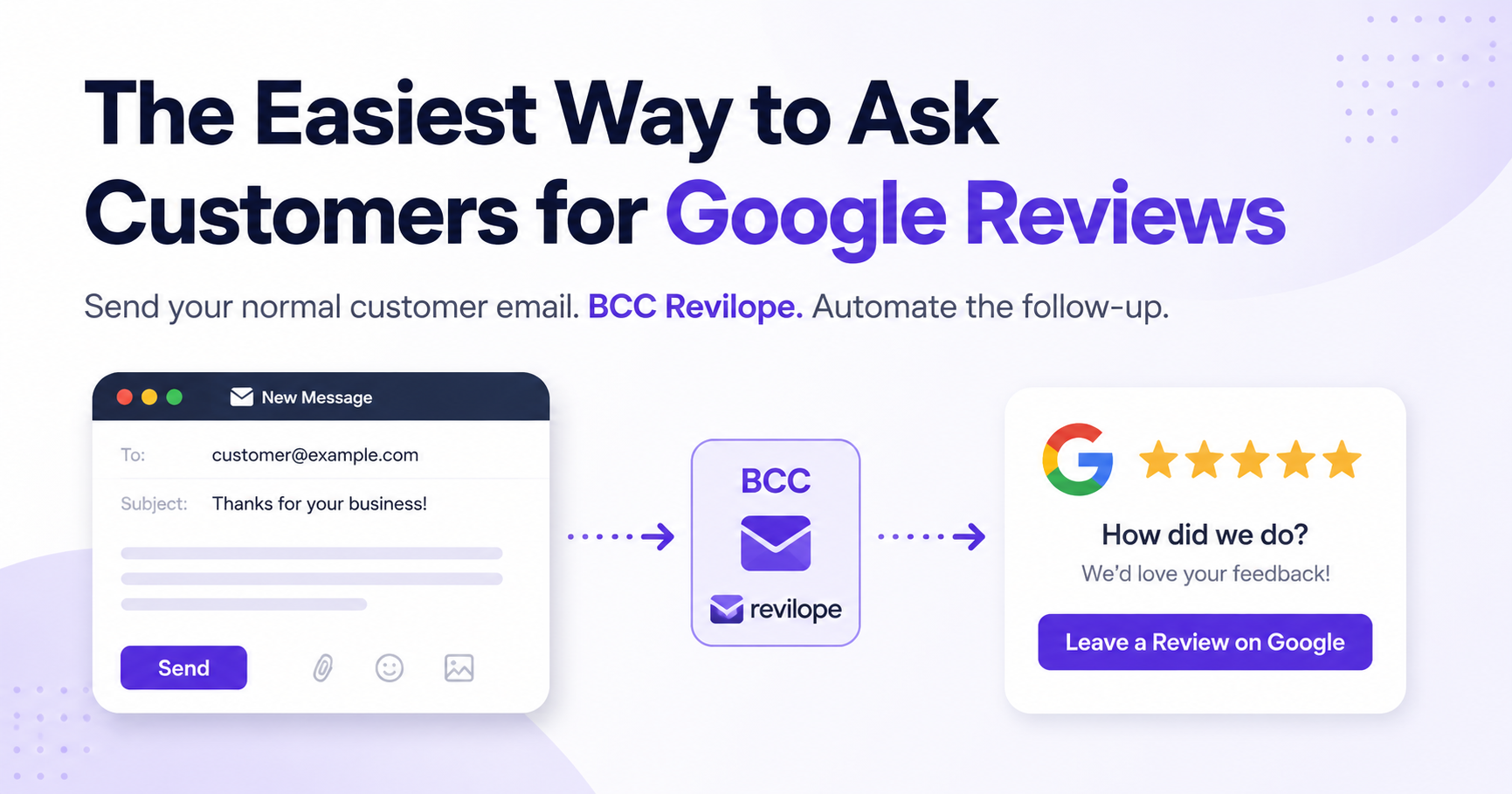
The Easiest Way to Ask Customers for Google Reviews
Google reviews can make a major difference for a local business. They help potential customers feel more confident, strengthen your online reputation and can improve how prominently your business appears in local search results.
The problem is that asking for reviews can feel awkward.
You may not know exactly what to say, when to send the request or how many times you should follow up. Even when a customer is clearly happy, it is easy to finish the job, move on to the next task and forget to ask for a review entirely.
The easiest way to ask customers for Google reviews is to make the request part of a process you already follow.
Instead of remembering to send a separate message after every transaction, you can automatically schedule the review request while sending a normal customer email.
That is exactly how Revilope works.
Why Asking for Google Reviews Feels Difficult
Most business owners understand the value of customer reviews. The difficulty is turning review requests into a consistent habit.
You might send dozens of emails every week, including:
- Receipts and invoices
- Appointment confirmations
- Project updates
- Thank-you messages
- Completed service notices
- Answers to customer questions
Each of these emails can represent an opportunity to request a review. However, sending another message manually a few days later creates additional work.
You have to remember which customers received service, find their email addresses, write the message and include the correct Google review link. When business gets busy, review requests are usually one of the first tasks to be forgotten.
A good review request system should remove as many of those steps as possible.
The Easiest Way to Ask for a Google Review
The easiest method is to connect the review request to an email you are already sending.
With Revilope, you send your customer a regular email from your usual email account. Before sending it, you add your private Revilope email address to the BCC field.
That is all you need to do.
Revilope identifies the customer receiving the email and schedules a separate Google review request to be sent after your selected delay.
The basic process looks like this:
- Send your customer a normal email.
- Add your private Revilope address to the BCC field.
- Revilope schedules the review request.
- The customer receives a separate, professional follow-up email.
- The customer can leave a Google review or reply privately.
You do not need to upload a customer list, connect a complicated CRM or manually create a new review request every time.
How the Revilope Process Works
1. Save Your Private Revilope Address
Each business in Revilope receives a private BCC email address.
You can save this address as a contact in Gmail, Outlook, Apple Mail or whichever email service you normally use. Give it a clear contact name, such as:
Revilope – Main Street Location
Once the contact has been saved, you do not need to memorize or repeatedly type the private address.
You simply select the saved contact whenever you want Revilope to follow up with a customer.
Your private address should not be edited or shared publicly. It is used to connect your customer emails to the correct Revilope business.
2. Send Your Customer a Normal Email
Write and send your customer email exactly as you normally would.
It could be a thank-you message, receipt, appointment follow-up or notice that a service has been completed.
For example:
Hi Sarah,
Thank you for choosing Greenfield Landscaping. It was a pleasure working on your property. Please let us know if you have any questions.
You do not need to ask for a Google review inside this message. The review request will arrive separately after the delay you selected.
3. Add Revilope to the BCC Field
Before sending the email, add your saved Revilope contact to the BCC field.
Using BCC means the customer does not see the Revilope address in the email. From their perspective, they are simply receiving a normal message directly from your business.
Revilope uses the BCC copy to identify the customer and prepare the follow-up request.
This small step turns an ordinary customer email into an automated review request without changing your existing workflow.
4. Let Revilope Send the Follow-Up
Revilope waits for your selected delay before sending the customer a separate email asking about their experience.
Waiting a short period can make the request feel more natural. It also avoids asking for a review before the customer has had time to use the product, reflect on the service or confirm that everything was completed properly.
Depending on the type of business, the review request might be sent one, two or three days later.
Revilope handles the timing automatically, so you do not need to set a reminder or return to the customer’s information later.
What Should a Google Review Request Say?
A professional Google review request does not need to be long.
It should:
- Thank the customer
- Clearly explain why their feedback matters
- Make the review link easy to find
- Avoid pressuring the customer
- Give them an opportunity to reply privately
A simple request might say:
Thank you for choosing our business. We would appreciate hearing about your experience. You can leave us a Google review using the link below or reply directly to this email if there is anything you would like to share with our team.
The message is polite, clear and easy to act on.
Customers should not have to search for your Google listing or figure out where to post their review. Providing a direct review link removes unnecessary steps and increases the likelihood that they will complete the request.
How to Ask for Reviews Without Feeling Awkward
The best way to avoid awkwardness is to make the request a normal part of your customer service process.
A review request should not sound like you are asking for a personal favour. It should feel like an invitation to share feedback.
Keep these principles in mind:
Ask Every Customer the Same Way
Do not only request reviews from customers you believe will leave five stars.
A consistent process is easier to manage and gives all customers the same opportunity to share their experience.
Revilope can send the same professional request to every customer you include through your BCC workflow. Customers can choose to leave a public Google review or reply privately with their feedback.
Keep the Message Short
Customers are more likely to read and respond to a short email.
Avoid lengthy explanations about how important reviews are to your business. A thank-you, a brief request and a direct link are usually enough.
Do Not Be Pushy
Ask once in a polite and professional way.
The customer should never feel pressured to leave a review or obligated to give a particular rating.
Send the Request at the Right Time
Ask after the customer has received the product or completed the service.
For some businesses, the next day is appropriate. Other businesses may benefit from waiting two or three days.
The best timing depends on how quickly the customer can evaluate their experience.
The Best Times to Ask for a Google Review
Good opportunities to schedule a review request include:
- After completing a service
- After delivering a product
- After a customer appointment
- After resolving a support issue
- After sending a final invoice or receipt
- After receiving positive feedback from the customer
- After completing a project or installation
The request should be sent while the experience is still recent, but not so quickly that the customer has not had time to evaluate it.
For example, a restaurant may request feedback the following day, while a contractor may wait a few days after completing a project.
Why Email Works Well for Review Requests
Email is one of the easiest ways to ask for Google reviews because many businesses already use it to communicate with customers.
An email request gives the customer time to respond when it is convenient. It can also include a direct link that takes them to the correct Google review page.
Unlike a verbal request, an email is not forgotten as soon as the customer leaves. The message remains in their inbox until they have time to open it.
Revilope makes email review requests easier by connecting them to the emails you are already sending.
You do not have to switch platforms every time you want to request a review. You continue using your normal inbox while Revilope handles the separate follow-up.
Avoid Complicated Review Request Systems
Some review platforms require businesses to import customer spreadsheets, connect multiple integrations or manage a separate customer database.
That may be useful for large organizations, but it can be unnecessary for a small business that simply wants to request more reviews.
A review request process should not create more administrative work than the reviews are worth.
With the Revilope BCC process, there is:
- No customer list to upload
- No complicated CRM to manage
- No need to manually schedule every follow-up
- No need to copy and paste the same message repeatedly
- No need to change how you normally email customers
You send your customer email, BCC Revilope and continue with your day.
Make Google Review Requests Part of Your Routine
The most successful review request strategy is usually not the most complicated one. It is the one your team will consistently use.
Saving your private Revilope address as an email contact makes the process especially simple. Whenever you send a suitable customer email, add that contact to BCC.
That small habit can create a steady flow of review requests without adding another major task to your schedule.
You can also train employees to follow the same process. Instead of giving staff a detailed set of instructions, you can tell them to add the saved Revilope contact whenever they send a final customer email.
Start Asking for Google Reviews the Easy Way
You do not need an awkward script, a complicated customer database or another daily task on your schedule.
The easiest way to ask customers for Google reviews is to build the request into an email process you already use.
With Revilope, the process is simple:
Send your normal customer email, BCC your private Revilope address and let Revilope handle the follow-up.
Your customer receives a professional review request after your selected delay, along with an easy way to leave a Google review or respond privately.
It is a simple way to request reviews more consistently without manually chasing customers.
Create your Revilope account and turn the customer emails you already send into opportunities to grow your Google reviews. You can also view Revilope plans and pricing to choose the option that fits your business.