

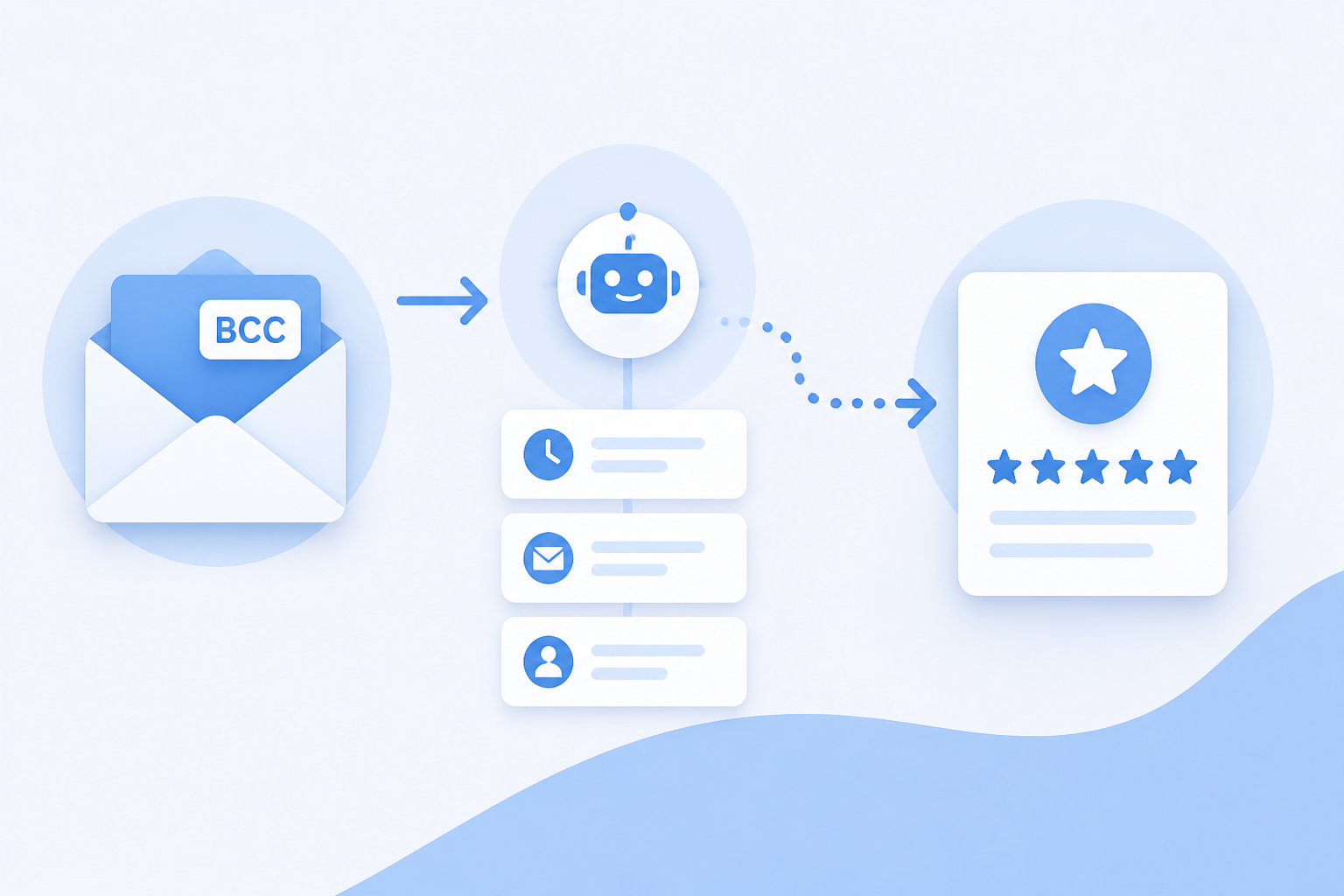
How a BCC Review Request Workflow Fits Into Your Customer Emails
A BCC review request workflow fits best when your team already sends an email that confirms a customer has received a completed, reviewable experience. Rather than adding a public-review ask to that operational message or remembering to follow up later, you add a private Revilope address in BCC. We then schedule a separate branded Google review request using the delay you have selected.
The key is not to BCC every customer email. Use the workflow at a genuine completion point: after work is finished, an order has been delivered and had time to be used, a project is handed over, or a support issue is resolved. That keeps the request timely, relevant, and respectful of the customer’s experience.
What happens when you BCC a review request address?
BCC, or blind carbon copy, sends a copy of an email to an additional recipient without showing that address to the customer. In this workflow, your customer still receives the normal email from your usual inbox. They do not see your private Revilope address in the BCC field.
When you add that address to an eligible customer email, it signals that the recipient should receive a separate review request after the saved delay. The original email and the follow-up have different jobs:
- Your normal customer email confirms completion, provides a receipt, answers a question, or shares a handoff.
- The later follow-up thanks the customer, invites honest feedback, and provides the direct Google review link you have set for that business.
This separation matters. A receipt or project update is often most useful when it stays focused on the information the customer needs immediately. A review invitation is easier to read when it arrives as a short, standalone message at a more suitable time.
Choose the email that represents a real completion point
The most useful BCC trigger is not necessarily the first email a customer receives. An order confirmation, booking confirmation, payment reminder, or initial support response is often too early because the customer has not yet experienced the outcome they would be reviewing.
Instead, look for the message that answers this question: Could the customer give informed feedback if they received the request after this email?
Examples of better trigger moments
- Completed appointments or straightforward services: a completion notice or thank-you email can be a suitable trigger.
- Projects, repairs, and installations: use the final handoff, then allow time for the customer to confirm the outcome if needed.
- Delivered products: trigger from a delivery or fulfillment message, not the original checkout confirmation.
- Support interactions: wait until the issue is resolved and the customer can confirm the solution works.
- In-person or phone interactions: use a manual request when there is no appropriate customer email to BCC.
A simple internal rule helps teams use the process consistently: BCC Revilope only when sending a qualifying completion email. Saving the private BCC address as a clearly named contact can also reduce typing mistakes during a busy day.
Set the delay around the customer’s ability to evaluate the experience
The delay should give the customer enough breathing room without making the interaction feel distant. Revilope offers delay options of 1 hour, 4 hours, 12 hours, 24 hours, 2 days, 3 days, and 7 days for each business.
| Typical delay | When it can fit | Why it works |
|---|---|---|
| 1 to 4 hours | A clearly completed, same-day interaction | Keeps the experience fresh while avoiding a review request at the exact moment as the original email. |
| 12 to 24 hours | Completed appointments, services, and straightforward purchases | Gives customers time to reflect while the details are still easy to recall. |
| 2 to 3 days | Products or outcomes that need brief use, setup, inspection, or reflection | Allows for more informed feedback without waiting so long that the experience loses context. |
| 7 days | Experiences that truly require a longer evaluation period | Provides time for repeat use or a result to become clear. |
A 24-hour delay is a practical starting point for many completed interactions, but it is not a universal setting. If customers need to receive, install, test, or use something before they can fairly comment, start the clock later or choose a longer delay. For a fuller timing framework, see our guide on choosing a Google review request delay.
Set up the BCC workflow before using it with customers
A short setup check prevents the most common avoidable errors: the wrong review link, an unrecognizable sender, or a follow-up that arrives at the wrong time. Before your team begins using BCC-triggered requests, confirm the following for each business:
- Google review link: Make sure it opens the correct Google Business Profile.
- Review-request template: Keep the message brief, recognizable, and clear on a phone. A simple thank-you, an invitation to share honest feedback, and a direct link are usually enough.
- Reply-to address: Set the address customers should use if they want to reply directly.
- Delay: Match it to the point at which customers can fairly assess what they received.
- Authorized senders: Verify each business email address that should be able to initiate a request.
- Test request: Send a test through the full process and check the sender name, subject line, reply path, timing, and review link.
We verify sending addresses before they can use a private BCC address. Verification uses the business email address and does not require an email password or inbox access. This helps prevent an unrecognized or former team address from initiating requests.
If you manage more than one business in an account, keep each business’s review link, template, reply-to address, delay, and authorized senders separate. This reduces the risk of a customer receiving a request with the wrong business identity or review destination.
Use a short, honest request rather than a rating prompt
Automation handles the routine, but the message still shapes the customer experience. A good request is concise and leaves the decision with the customer. It should not ask for a particular rating, promise anything in return for a review, or use repeated reminders to pressure a response.
A practical structure is:
- Thank the customer for choosing the business.
- Invite them to share their experience or honest feedback.
- Provide one direct route to the correct Google review page.
- Make the reply path clear for customers who would rather contact the business directly.
For example: “Thank you for choosing us. We would appreciate hearing about your experience. If you would like to share feedback on Google, you can use the link below.” The wording is direct without telling the customer what to say or how to rate the experience.
Revilope supports custom review request templates, allowing you to set branded wording rather than relying on a generic message. A template is also helpful for maintaining a consistent tone when several people send qualifying customer emails.
What to do when BCC is not the right trigger
BCC automation is selective by design. It works well when an email reliably marks the reviewable moment, but some customer interactions do not create that email. For example, an in-person visitor, phone customer, or a customer handled through another system may still deserve a timely opportunity to share feedback.
We support manual review requests in the dashboard for those situations. You can paste one or more customer email addresses and choose to send the request as soon as possible or use the business’s saved delay. Manual and BCC-triggered requests use the same plan allowance.
Manual sending works best as a supplement to a timely routine, not as a large campaign to customers whose interaction happened months ago. The same standard applies: ask after a reviewable experience while the details are still recent enough for useful feedback.
Monitor the workflow instead of assuming every request was sent
A BCC review request workflow should be easy to use, but it should not be invisible. Checking activity tells you whether the process is working and helps your team correct issues without guessing.
Our dashboard shows statuses including scheduled, sending, sent, failed, cancelled, skipped as a duplicate, and rejected. For example, a rejected request can indicate that the sending email address has not been verified. A skipped request can show that the customer was already contacted, rather than suggesting the BCC action was ignored.
We retry temporary sending failures up to three times. If a request permanently fails before it is sent, the reserved request is returned to the plan allowance.
Respect opt-outs and avoid repeat prompts
One appropriate request after a completed interaction is more customer-friendly than repeated follow-ups. Every live Revilope review request includes an unsubscribe option. If a recipient unsubscribes, we prevent future review requests from that business and cancel requests that are still waiting to be sent.
Duplicate detection also helps prevent unnecessary repeat requests. Together, these controls let your team build a consistent process without treating every BCC action as a reason to contact the same customer again.
A simple routine for the right customer moment
The most effective workflow is usually the one your team can follow without interrupting normal customer communication: send the completion email, add the saved private Revilope contact in BCC, and let the separate follow-up send after the appropriate delay.
That routine keeps the original message useful, makes review requests easier to remember, and gives customers space to provide honest feedback when they are ready. To see the complete setup and workflow, visit Using Revilope. When you are ready to set up your review link, template, delay, and authorized senders, you can Start Sending Free.