

How to Build a Google Review Request Process Your Team Will Actually Use
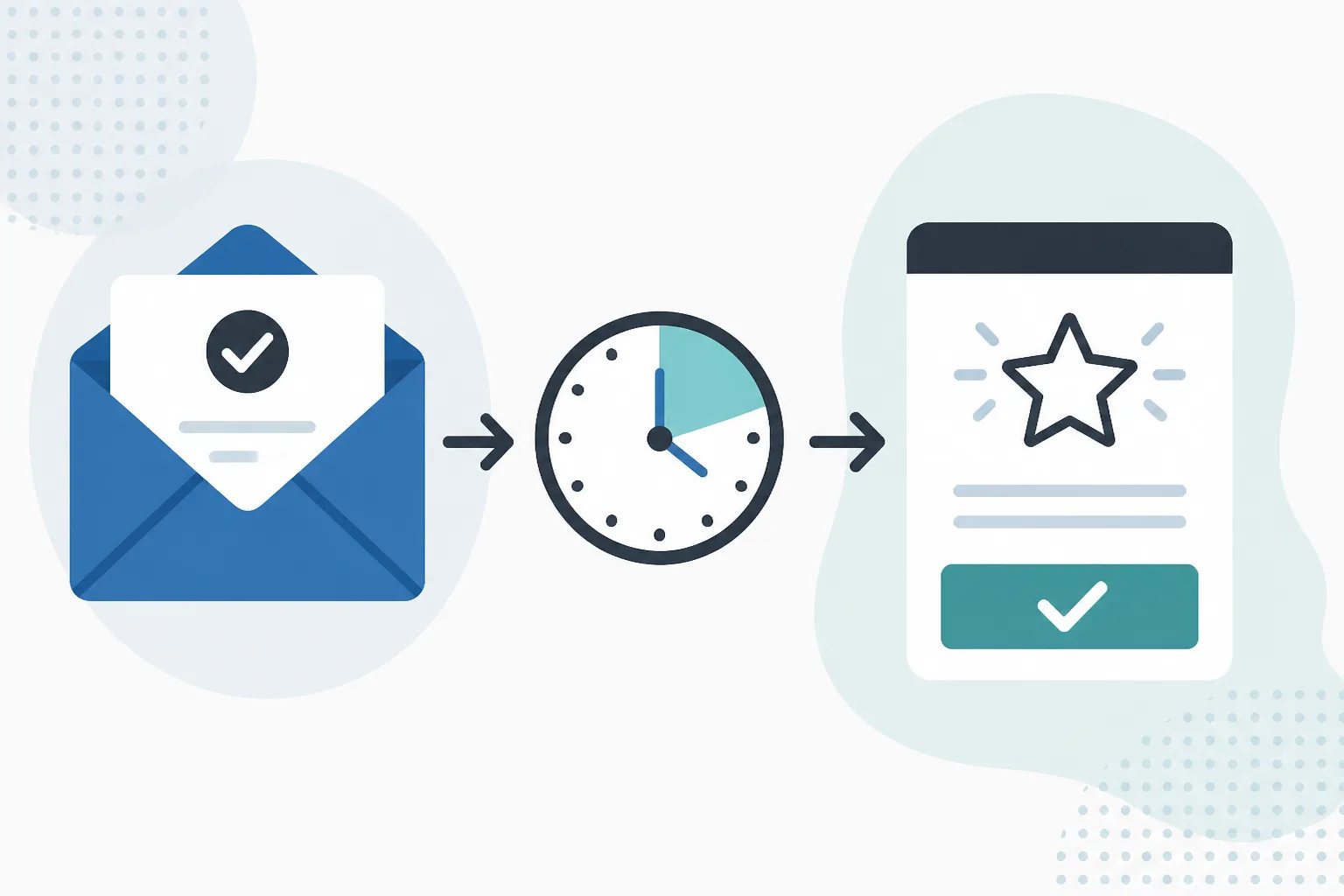
A reliable Google review request process should be easy for your team to follow and natural for customers to receive. Start by identifying the point when a customer has genuinely received the value of your service, product, or support. Then send one short invitation after an appropriate delay, with a direct link to your Google review page.
The strongest process is not the one with the most steps. It is the one that turns a real completion point into a consistent, respectful follow-up without asking staff to remember a separate task at the end of every day.
Start with the moment a customer can give informed feedback
Do not build your process around the first time you collect an email address. An inquiry, booking confirmation, invoice, payment reminder, or order confirmation often happens before the customer has enough experience to review your business fairly.
Instead, identify the customer’s reviewable moment. This is the point at which they can reasonably describe what went well, what did not, or whether the outcome met their expectations.
- Completed services: Use a completion notice, final handoff, or thank-you email after the work is finished.
- Delivered products: Wait until delivery, then allow enough time for inspection, setup, or use where needed.
- Projects, repairs, and installations: Trigger the request after the final handoff, not after the estimate, deposit, or first visit.
- Support: Ask after the issue is resolved and the customer has had a chance to confirm the solution works.
- In-person or phone interactions: Use a manual request after the interaction is complete if no suitable customer email was sent.
This single decision prevents the most common timing problem: asking customers to review an experience they have not fully received yet.
Core decision
The trigger matters more than the automation
A review request is only as relevant as the customer milestone that starts it. Choose a completion point, delivery confirmation, final handoff, or resolved support outcome, not an early administrative event such as a booking or payment.
Turn that milestone into one clear team rule
A process only works when people can remember it during a busy day. Avoid broad instructions such as “ask every customer” or “send review requests after a sale.” They leave too much room for inconsistent timing.
Write one short rule that identifies both the qualifying interaction and the action your team should take. For example: “When you send a customer a completion email after a finished service, start the review-request follow-up.”
The exact wording will vary by business, but the rule should answer three questions:
- Which customer interactions qualify?
- Which email or event marks that interaction as complete?
- Who is responsible for starting the follow-up?
Some businesses have a dependable completion email already built into their workflow. Others need a manual exception for interactions handled in person, by phone, or through a separate system. Defining both paths upfront keeps manual sends from becoming an inconsistent catch-up exercise.
Choose a delay based on what the customer needs to evaluate
Timing should give customers enough space to form an honest opinion while the experience is still clear in their mind. A delay also separates the review invitation from practical messages such as receipts, project updates, or resolution emails.
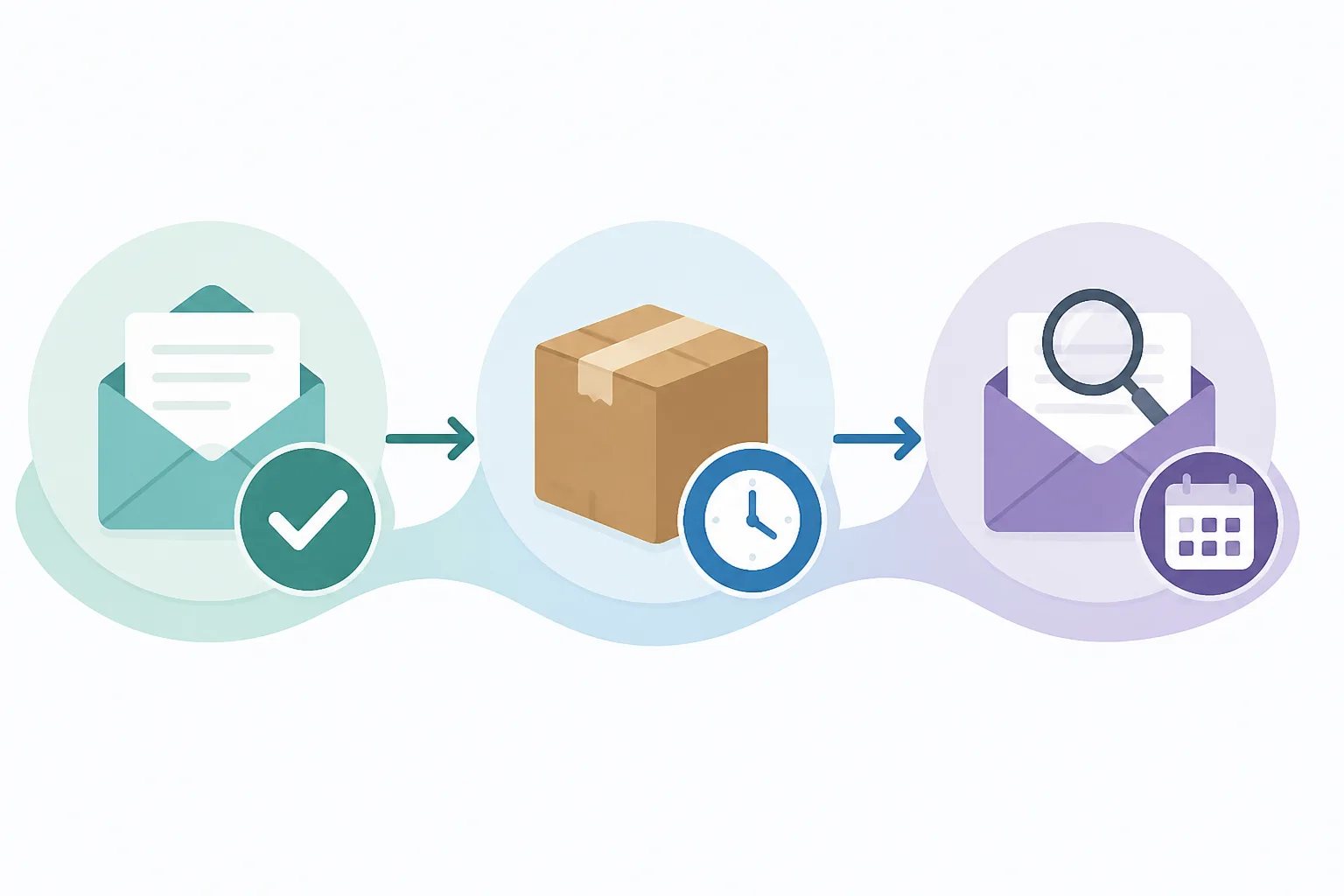
For a clearly completed, same-day interaction, a short delay of one to four hours can work well. For many completed appointments, services, and straightforward purchases, 12 to 24 hours is a practical starting point. When someone needs time to inspect a product, test a repair, set something up, or see an outcome, two or three days may make more sense. A longer delay is best reserved for experiences with a genuine evaluation period.
The important question is not, “What delay do other businesses use?” It is, “If this request arrived now, could our customer write a useful review without feeling rushed or confused?”
Revilope lets you set a follow-up delay for each business. Our available options are 1 hour, 4 hours, 12 hours, 24 hours, 2 days, 3 days, and 7 days. A 24-hour delay is a useful starting point for many completed interactions, but the customer journey should determine the final setting. Our guide on choosing a Google review request delay explains the timing tradeoffs in more detail.
Keep the operational email and review invitation separate
A receipt, delivery update, completion notice, or support message has an immediate job to do. Adding a public-review request to that message can distract from the information the customer needs. A separate follow-up keeps both communications clearer: the first message handles the transaction or service outcome, and the second politely invites feedback.
For most review requests, the message itself can stay brief:
- Thank the customer.
- Invite them to share honest feedback.
- Give them one direct link to the correct Google review page.
- Provide a clear reply path if they would rather contact your business directly.
Do not ask for a particular rating, offer an incentive in exchange for a review, or make the invitation sound urgent. The customer should remain free to decide whether to respond and what feedback to share.
With Revilope, you can create a custom email template for each business, including its Google review link and reply-to address. This makes the follow-up recognizable without requiring staff to rewrite the request each time.
Use automation for routine emails and manual requests for real exceptions
Automation is most useful when a normal customer email consistently marks completion. In our workflow, an approved sender adds a private Revilope address to BCC on an eligible customer email. We then schedule a separate branded Google review request after the saved delay. The customer does not see the BCC address.
This approach gives your team a selective trigger. They can use it on appropriate completion, delivery, handoff, or support-resolution emails without treating every customer email as a reason to request a review. You can see the setup and daily workflow on our Using Revilope page.
Manual requests fill the gaps. They are useful for recently completed in-person visits, phone interactions, or other customer experiences that did not produce a qualifying email. In the Revilope dashboard, you can add one or more customer email addresses and choose to send as soon as possible or apply the saved delay for that business.
Manual sending is not a reason to send a large batch to customers whose experiences happened months ago. A timely request tied to a specific completed interaction is usually more relevant than an old campaign with little context.
Build safeguards into the process before your team relies on it
A good review-request routine should protect customer choice and prevent avoidable mistakes. That means deciding who can trigger requests, checking the review link and template before going live, and making sure the team understands which customer emails qualify.
Before you go live
Review-request process checklist
Use this short checklist to test the process from your customer's point of view before making it part of daily work.
- Choose the customer milestone that represents a completed, reviewable experience.
- Confirm the Google review link leads to the correct Business Profile.
- Keep the request brief and invite honest feedback without requesting a specific rating.
- Set a delay that gives customers appropriate time to evaluate the outcome.
- Verify every email address allowed to trigger automated requests.
- Run a controlled test and check the template, reply path, delay, and activity status.
- Use manual sends only for recent completed interactions outside the normal email workflow.
At Revilope, sending addresses must be verified before they can use a private BCC address. This helps ensure that only approved addresses can initiate a review request. Verification uses the business email address and does not require an email password or inbox access.
Every live Revilope review request also includes an unsubscribe option. When a customer unsubscribes, we prevent future review requests from that business and cancel any request for that customer that is still waiting to send. Duplicate detection helps avoid unnecessary repeat invitations.
Check activity so automation does not become invisible
Sending a request and receiving a review are different events. A dashboard should help you understand what happened to the invitation without assuming that every request was delivered or that every customer will respond.
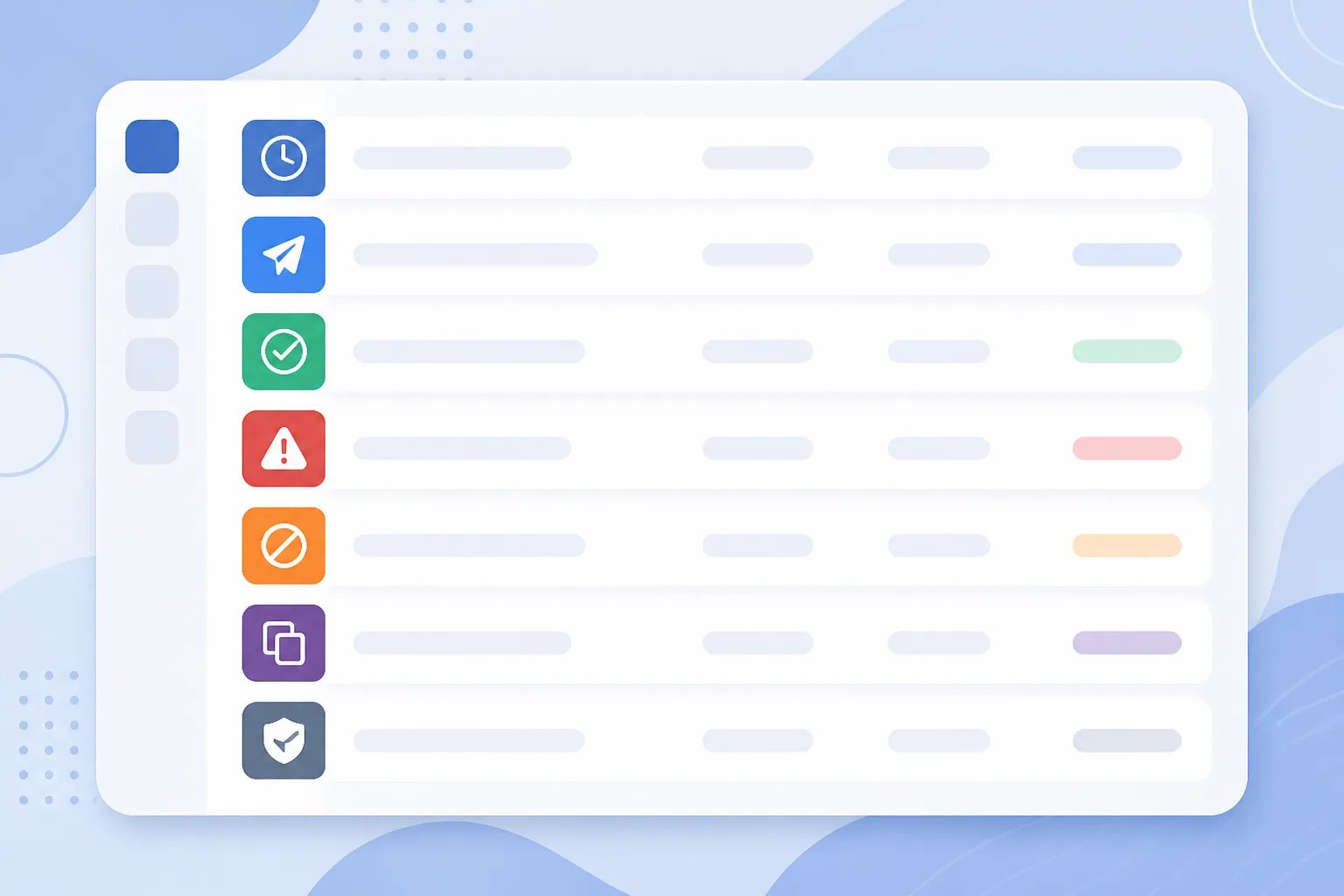
Our dashboard shows request and sending statuses including scheduled, sending, sent, failed, cancelled, skipped as a duplicate, and rejected. These statuses give your team useful next steps. A scheduled request is still waiting for its delay; a skipped duplicate means the customer was already contacted; and a rejected request can point to a sender address that has not been verified.
We retry temporary sending failures up to three times. If a request permanently fails before it is sent, the reserved request is returned to the plan allowance. Reviewing the activity record before creating another request helps keep the workflow deliberate and avoids unnecessary follow-up.
A short check after a template change, new sender approval, or manual send is usually enough. The goal is not to monitor customers or pressure them for reviews. It is to confirm that your process is operating as intended.
Make the process easy enough to repeat
A practical review-request process has a simple sequence: wait for a real completion point, send the normal customer communication, trigger one separate request, give the customer time to respond, and review exceptions in the activity record.
When your normal customer emails already mark a completed experience, Revilope can turn that existing habit into a delayed, branded, and trackable follow-up. The result is a process that supports honest feedback without making review requests another task your team has to remember later.
Helpful answers
Frequently Asked Questions
Set up a review-request routine around your customer emails
Create a free Revilope account to configure your review link, template, delay, and authorized sending addresses.