

How to Automate Google Review Requests From Customer Emails
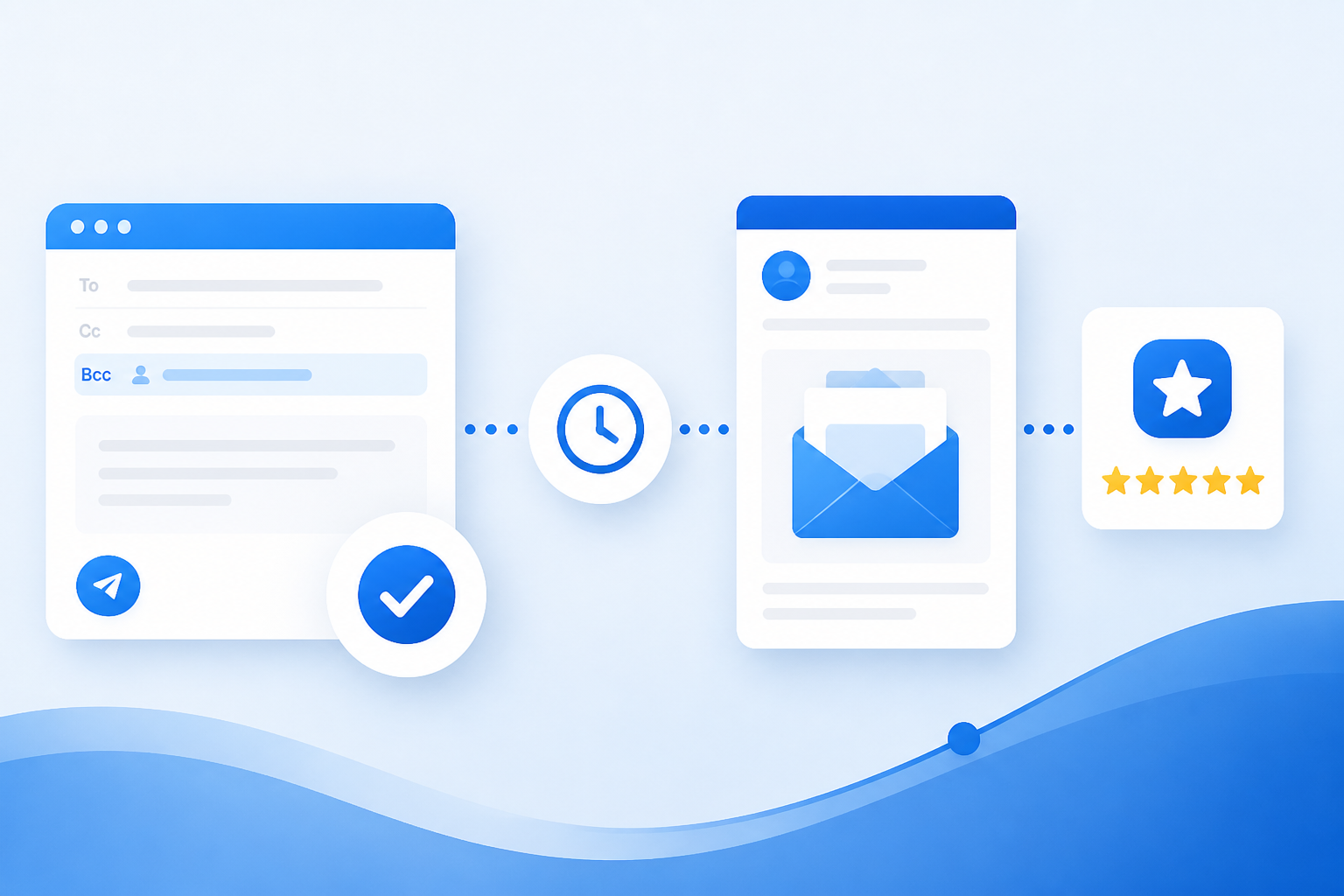
To automate Google review requests from customer emails, connect the request to an email that confirms a completed, reviewable experience. With Revilope, you BCC your private Revilope address on that customer email. We then schedule a separate branded Google review request after the delay you have chosen.
This approach works best when your team already sends emails such as completion notices, receipts, project handoffs, delivery updates, or support-resolution messages. Rather than creating a separate task to remember later, the email itself becomes the signal that a customer is ready to be invited to share honest feedback.
How to automate Google review requests from customer emails
A useful review-request workflow has four parts: choose the right customer moment, send your normal operational email, trigger a separate follow-up, and check that the request was handled correctly.
- Identify the reviewable moment. Choose the point at which the customer has received enough value to fairly assess the experience.
- Send the customer email you would normally send. Keep it focused on its immediate purpose, such as confirming completion or answering a final question.
- Add your private Revilope address in BCC. The customer does not see that BCC address.
- Let the saved delay run. We schedule a separate review request rather than adding a review ask to the original operational email.
- Review activity in the dashboard. Check whether the request was scheduled, sent, cancelled, skipped as a duplicate, rejected, or failed.
The key is that automation should follow a real customer milestone, not simply the first point at which you collect an email address. An order confirmation, appointment booking, or payment reminder is often too early because the customer may not yet have received the product, completed service, or resolved outcome they would be reviewing.
Choose an email that marks completion, not just a transaction
The most effective trigger email is usually one that naturally follows a completed interaction. For example, a service business might use a final completion email. A product business might wait for delivery confirmation and an appropriate period for the customer to use the item. A support team might trigger the request only after the issue is resolved.
Before using any email as a trigger, ask one practical question: If the customer received a request today, could they give informed feedback without feeling that the request is premature? If the answer is no, choose a later point in the journey.
- Completed appointments or straightforward services: a completion or thank-you email can be an appropriate trigger.
- Projects, repairs, and installations: wait until the final handoff and, where relevant, enough time to confirm the outcome.
- Delivered goods: use a delivery or fulfillment milestone rather than the order confirmation.
- Support interactions: wait until the customer has a working resolution, not merely a first response.
Our BCC workflow is deliberately selective. You decide which customer emails should trigger a review request by adding our private address to BCC. That can be simpler than automating every contact in a system when only certain emails represent a completed experience.
Set a delay that gives customers time to evaluate the experience
Automation does not mean every request should be sent immediately. A short delay keeps the interaction fresh while separating the review request from a receipt, invoice, project update, or completion notice.
As general guidance, 12 to 24 hours often suits completed appointments, same-day services, and straightforward purchases. Two to three days can be more appropriate when a customer needs brief time to use, inspect, set up, or reflect on what they received. A longer delay is best reserved for experiences that genuinely need a longer evaluation period.
Revilope provides delay options of 1 hour, 4 hours, 12 hours, 24 hours, 2 days, 3 days, and 7 days for each business. A 24-hour delay is a practical starting point for many completed interactions, but it should be adjusted to the customer journey rather than treated as a universal default. Our guide to choosing the right Google review request delay explains the timing tradeoffs in more detail.
Keep the original email operational and the request separate
Combining a receipt, invoice, or completion notice with a request for a public review can make a necessary customer email feel promotional. A separate follow-up gives each message one clear job: the original email delivers information, while the later email invites feedback.
That separation also means your team does not need to rewrite the review request for every customer. Once you set up a template, the follow-up can use consistent branding, wording, review link, reply-to address, and delay for that business.
A customer-ready request is usually brief. It should thank the customer, invite honest feedback, and include a direct Google review link. It should not request a particular rating, promise an outcome for reviewing, or pressure the customer to respond. A clear invitation is more professional than a lengthy explanation of why the business wants more reviews.
Set up the workflow before your team starts using it
Small setup decisions prevent avoidable problems later. Before adding Revilope to live customer emails, make sure each business has its own correct details and test the request from the recipient’s perspective.
- Add the correct Google review link for the business.
- Create a branded template that is short, recognizable, and easy to read on a phone.
- Set a reply-to address and a follow-up delay.
- Verify the business email addresses that are allowed to trigger requests.
- Send a test through the full workflow and check the sender name, subject line, review link, reply path, and timing.
We verify sending addresses before they can use a private BCC address. This helps prevent unrecognized or former team email addresses from initiating requests. Verification uses the business email address and does not require an email password or inbox access.
If several businesses are managed in one account, keep their review links, templates, reply-to addresses, delays, and authorized senders distinct. That avoids sending a customer to the wrong Google profile or using the wrong business identity in a follow-up.
Use manual requests for customers outside the email workflow
Email-triggered automation is useful, but it will not cover every customer. An in-person visitor, phone customer, or customer whose completed interaction did not produce a suitable email may still deserve a timely opportunity to share feedback.
We also support manual requests in the dashboard. You can paste one or more customer email addresses and choose to send the request as soon as possible or apply that business’s saved delay. Manual and BCC-triggered requests use the same plan allowance.
Manual sending works best as a supplement, not as a reason to send a large campaign to customers whose experience happened months ago. The same timing rule still applies: ask after a reviewable experience while the details are recent enough for useful feedback.
Respect customer choice and prevent repeat requests
A review request should be easy to act on and easy to decline. Every live Revilope review request includes an unsubscribe option. When a recipient unsubscribes, we prevent future review requests from that business and cancel requests that are still waiting to be sent.
This matters operationally as well as for the customer experience. An unsubscribe preference should not depend on individual team members remembering a note or updating a separate spreadsheet. It should be reflected in the review-request process itself.
Revilope also identifies duplicate requests so your team can see when an email was skipped rather than assuming every BCC action created another follow-up. The goal is one appropriate invitation after a completed experience, not repeated prompts for the same interaction.
Monitor activity instead of assuming every request was delivered
Automation reduces routine work, but it should not become invisible. Checking request activity helps you identify a workflow issue before it affects more customers.
Our dashboard shows request and sending statuses, including scheduled, sending, sent, failed, cancelled, skipped as a duplicate, and rejected. A rejected request may point to an email address that has not been verified as an authorized sender. A skipped request can indicate that the customer was already contacted. These details make it easier to correct the process rather than guessing what happened.
We retry temporary sending failures up to three times. If a request permanently fails before it is sent, the reserved request is returned to the plan allowance.
A practical review-request routine for your team
For a workflow that people can remember during a busy day, keep the rule simple: when you send the customer a qualifying completion email, add the saved Revilope contact to BCC.
Saving the private BCC address as a contact can reduce typing errors and make the process easier to use across a team. The important qualification is the word “qualifying.” Team members should know which messages represent a genuine completion point and which ones are too early to trigger a request.
For a closer look at the process, visit how Revilope works. When your normal customer emails already signal completion, BCC-triggered automation can turn that familiar step into a timely, branded, and trackable review-request routine.
Start Sending Free to set up your review link, template, delay, and authorized senders.