

How to Send Google Review Requests From Your Regular Email
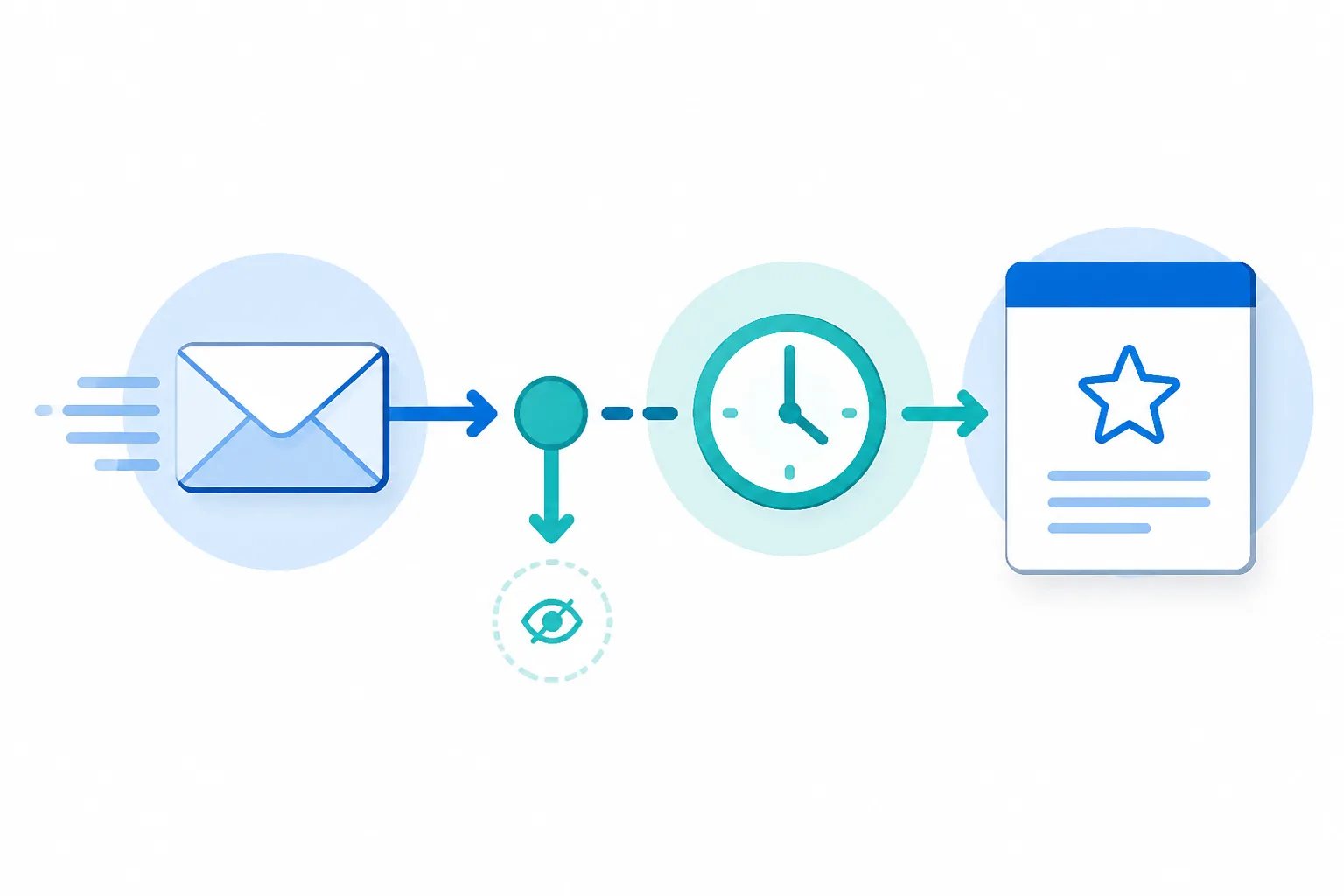
If you want to know how to send Google review requests from your regular email, start with the customer message that marks a genuinely completed experience. With Revilope, you send that normal operational email and add your private Revilope address in BCC. We then schedule a separate branded review request using the delay saved for your business.
This approach keeps the original email focused on the customer’s immediate need, such as a completion confirmation, delivery update, final handoff, or support resolution. The review invitation arrives later as its own message, after the customer has had time to assess what they received.
What a BCC-triggered review request does
BCC means “blind carbon copy.” The recipient of your customer email does not see the BCC address. In a Revilope workflow, that private address acts as a signal that a qualifying customer email should begin a review-request follow-up.
The sequence is straightforward:
- You send the customer email you would normally send.
- You add your private Revilope address in the BCC field.
- We process the email-header information needed to identify the sender, customer, and correct business. We do not fetch or read the email body, attachments, images, or conversation history.
- We schedule a separate review request after your saved delay.
The original email and the review request serve different purposes. One confirms, explains, or resolves something for the customer. The other gives them a simple opportunity to share honest feedback through the Google review link you have set for that business. You can see the core sequence on our How It Works section.
How to send Google review requests from your regular email at the right moment
The BCC action is simple. Choosing the right email to trigger it is the more important decision. A good trigger comes after the customer has received enough value to form an informed opinion.
For example, a completion email can be a suitable trigger after a straightforward appointment or finished service. A delivery update is usually more appropriate than an order confirmation for a physical product, though the customer may need additional time to use or inspect it. For a support interaction, wait until the customer has a working resolution rather than using the first reply.
Emails that are often too early include booking confirmations, payment reminders, order receipts before delivery, and initial support acknowledgements. They confirm that a process has started, not that the customer has experienced the outcome they would be reviewing.
Use one internal question before adding the BCC address: Could this customer fairly describe their experience if the review request arrived after our chosen delay? If not, choose a later milestone.
Customer-milestone rule
The BCC address is a trigger, not a default recipient
Add the private BCC address only to emails that follow a defined customer completion point. Using it on every reply, invoice, or booking confirmation can create a review request before the customer has enough experience to give informed feedback.
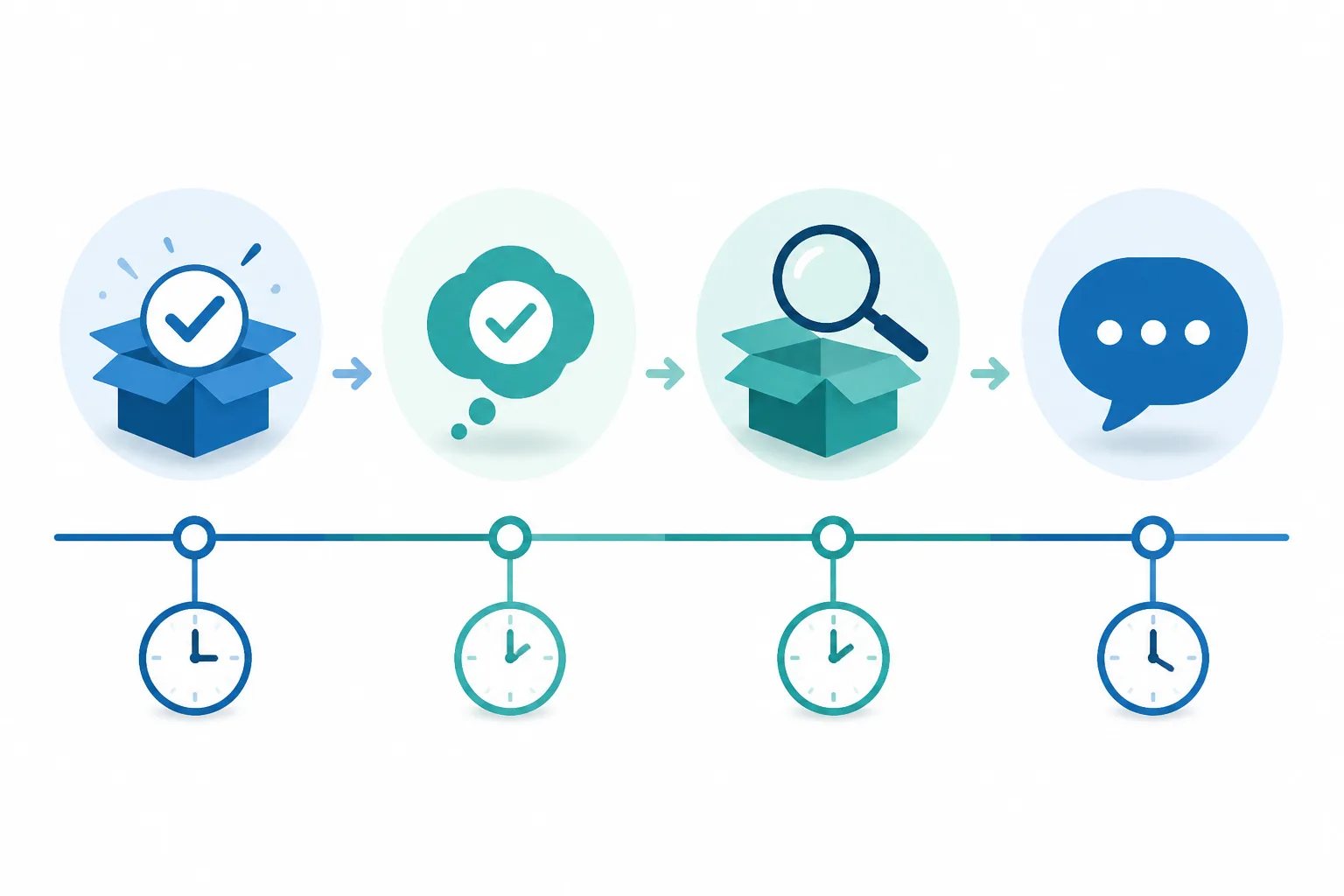
Choose a delay based on the customer’s evaluation window
A delay separates the review invitation from the operational email and gives the customer breathing room. The useful delay is determined by when they can evaluate the experience, not by a universal number of hours.
| Customer situation | Useful general timing | Why it can fit |
|---|---|---|
| Clearly completed, same-day interaction | 1 to 4 hours | The experience is fresh, without placing the request directly alongside the original email. |
| Completed service, appointment, or straightforward purchase | 12 to 24 hours | The customer has time to reflect while the details remain easy to recall. |
| Product or outcome that needs brief use, setup, or inspection | 2 to 3 days | The customer can form feedback based on more than the transaction itself. |
| Experience with a genuine longer evaluation period | Up to 7 days | More time can be appropriate when the outcome is not clear immediately. |
Revilope offers delay options of 1 hour, 4 hours, 12 hours, 24 hours, 2 days, 3 days, and 7 days for each business. A 24-hour delay is a practical starting point for many completed interactions, but it should not replace a close look at your customer journey. Our guide to choosing a Google review request delay explains the tradeoffs in more detail.
Keep the review invitation separate from essential customer emails
Combining a receipt, invoice, project update, or resolution message with a public-review request can make an operational email feel promotional. A separate follow-up is cleaner for both sides: the first message handles the customer’s immediate information, and the later message makes one clear, optional invitation.
Once your settings are in place, Revilope uses the branded template, review link, reply-to address, and delay saved for that business. A useful review-request message is brief: thank the customer, invite honest feedback, and provide a direct path to the correct Google review page.
Do not ask for a specific rating or make the request sound like a personal obligation. The goal is to invite feedback, not to control what the customer says. A clear request also makes it easier for a customer to recognize why they received it.
Limit the BCC trigger to approved customer-facing senders
An email-triggered workflow needs a clear rule about who can start it. Revilope verifies authorized sender addresses before they can use a private BCC address. That helps prevent an unrelated, outdated, or unapproved address from initiating review requests.
Do not assume every address on the same domain should be approved. Individual accounts, shared inboxes, aliases, billing mailboxes, and former staff addresses can have different purposes. Review the visible address customers receive messages from, especially when a team composes messages through a shared mailbox or alias.
A sender is a strong candidate when it is used for customer-facing communication and there is a defined point at which an email from that address represents a completed interaction. For a deeper explanation of this control, read our guide to authorized sender verification for automated review requests.
Setup checklist
Before your team uses the BCC trigger
A short setup check helps make each request recognizable, correctly timed, and tied to the right business.
- Define the completion email or customer milestone that qualifies for a request.
- Confirm the Google review link opens the correct business profile.
- Create a brief branded request template with a clear reply-to address.
- Set a delay that gives customers time to evaluate the experience.
- Verify every customer-facing sender address that should be allowed to trigger requests.
- Run a controlled test and check the resulting activity status.
Use manual requests only where the email trigger does not fit
BCC-triggered requests work when a normal customer email reliably marks completion. They do not cover every situation. An in-person customer, phone customer, or customer handled through another system may not receive a suitable email that day.
For those gaps, we support manual requests from the Revilope dashboard. You can add one or more customer email addresses and choose to send as soon as possible or use the saved delay for that business. Each recipient receives an individual email, and manual and BCC-triggered requests count toward the same plan allowance.
Manual does not mean indiscriminate. Apply the same standard: send one invitation after a recently completed, reviewable interaction. A broad catch-up message to customers whose experiences happened months ago can feel disconnected and gives customers less useful context for feedback. Our guide on sending manual Google review requests at the right time covers these situations in more detail.
Check the request status instead of guessing
Automation should remove repetitive work, not remove visibility. Our dashboard records the progress of both manual and BCC-triggered requests. Key statuses include scheduled, sending, sent, failed, cancelled, skipped as a duplicate, and rejected.

- Scheduled means the request is waiting for your saved delay. It is not yet a sent email.
- Sent confirms that the invitation was sent, not that the customer left a review.
- Rejected can indicate that the sending address was not verified as an authorized sender.
- Skipped as a duplicate indicates that the customer was already contacted, helping avoid another invitation.
- Cancelled can reflect an unsubscribe while the request was still waiting to send.
We automatically retry temporary sending failures up to three times. If a request permanently fails before it is sent, the reserved request is returned to your plan allowance. Reviewing the actual status before creating another request helps preserve a clear, customer-conscious workflow. Learn more in our guide to review request activity statuses.
Respect customer choice throughout the workflow
Every live review request we send includes an unsubscribe option. When a customer unsubscribes, we prevent future review requests from that business and cancel requests for that customer that are still waiting to send.
This safeguard works best alongside good trigger decisions. Do not add the BCC address to every outgoing email. Define the completion messages that qualify, give staff one simple rule for using the trigger, and revisit that rule when your customer journey or email setup changes.
A BCC-based process is most useful when it makes a thoughtful action easier to repeat: send the normal completion email, add the private BCC address only when the experience is ready for review, allow an appropriate delay, and let the customer decide whether to share feedback.
Helpful answers
Frequently Asked Questions
Set up review requests around real customer milestones
Create an account to add your review link, template, delay, and approved sending addresses before using the BCC trigger.