

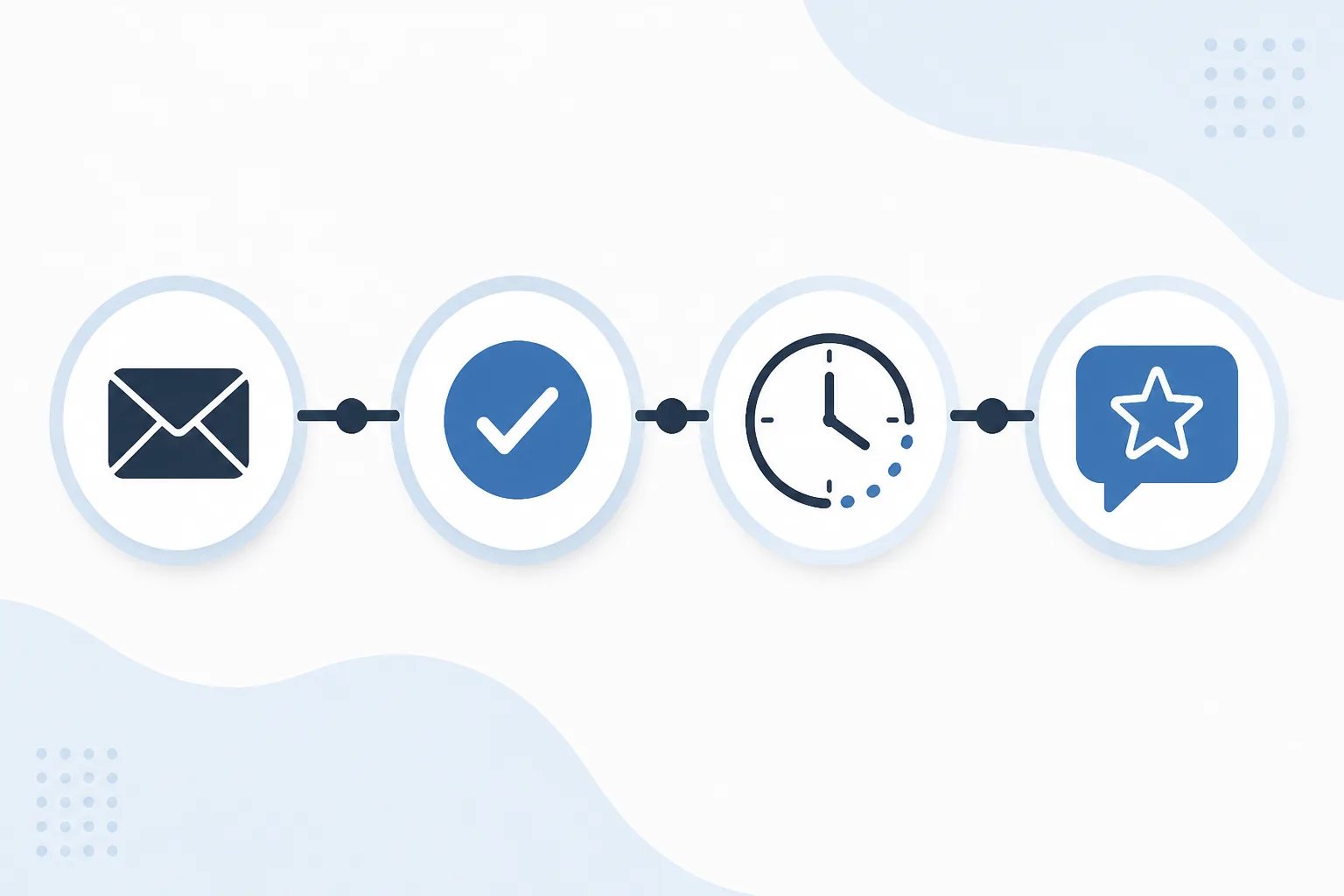
A Practical Review Follow-Up Timing Guide for Different Customer Journeys
A useful review follow-up timing guide starts with one question: has the customer received enough value to give honest feedback? Choose that real completion point first, then add only as much delay as the customer needs to reflect. For many completed services and straightforward purchases, 12 to 24 hours is a practical starting range. Products, repairs, installations, and resolved support issues can need longer because the customer may need time to use or confirm the outcome.
The goal is not to send every request on the same calendar schedule. It is to create a simple rule that makes each invitation relevant to the experience it follows.
Find the moment a customer can fairly review
A transaction is not always a reviewable experience. Booking confirmations, order confirmations, invoices, and first support replies are often administrative milestones rather than proof that the customer has received what they came for.
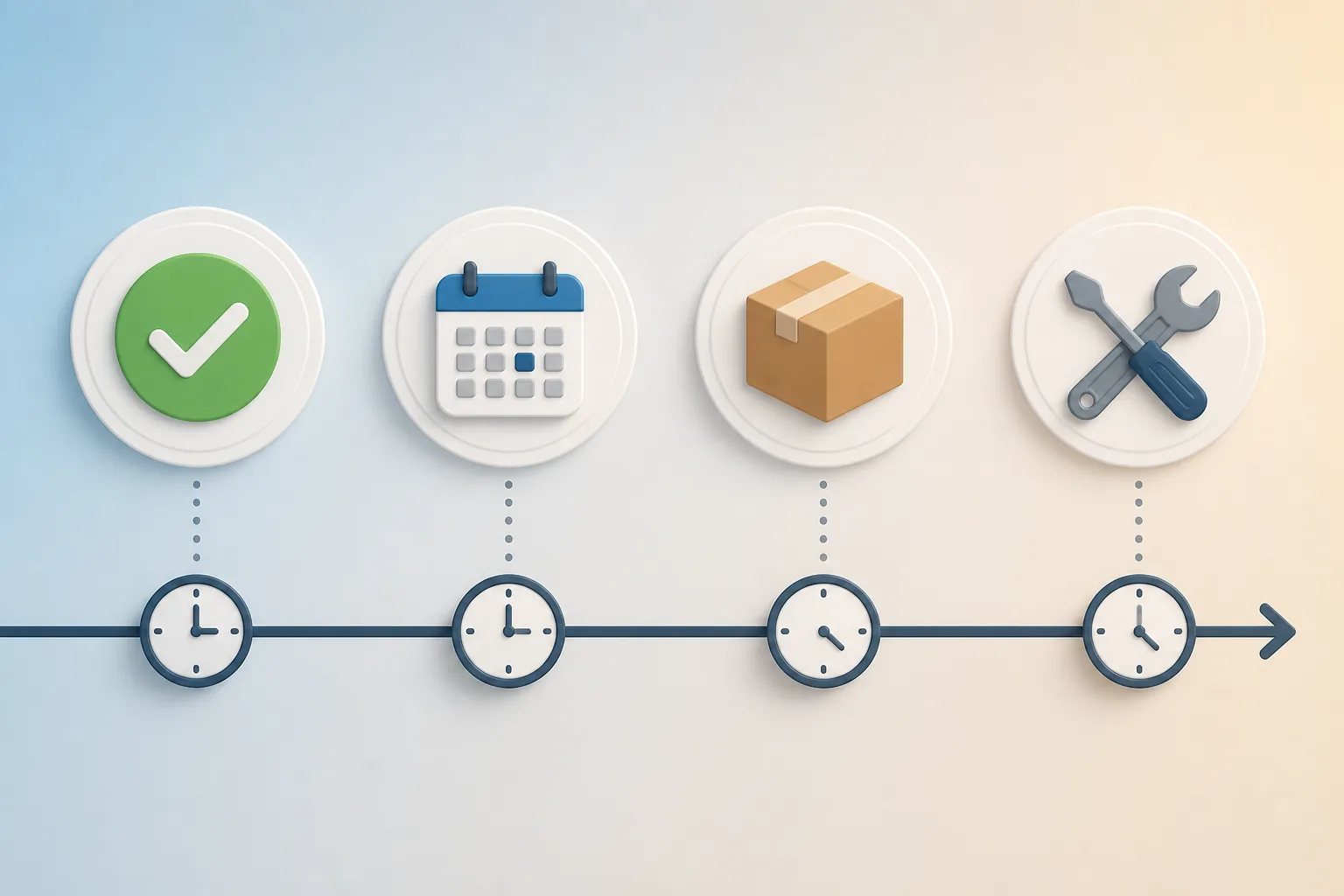
Instead, identify the event that lets the customer answer, “Can I describe this experience meaningfully now?” The right trigger often looks like one of these:
- Completed appointment or service: a completion notice, receipt, or thank-you message sent after the work is finished.
- Delivered item: a delivery or fulfillment confirmation, rather than the original checkout message.
- Repair, installation, or project: a final handoff after the customer can test the result.
- Support interaction: confirmation that the issue is resolved and the solution has had a chance to work.
- In-person or phone interaction: a recently completed interaction where there is no normal completion email.
This distinction matters because a request that arrives before the outcome can be assessed creates an awkward question for the recipient. A request that follows a genuine completion point gives them a clear, voluntary opportunity to share what happened.
Match the delay to the evaluation window
The delay should give a customer breathing room without letting the interaction lose context. A shorter delay suits an experience that is fully complete right away. A longer delay is more appropriate when the value becomes clear only after use, setup, or follow-up.
| Customer situation | Useful starting delay | Why it can fit |
|---|---|---|
| Clearly completed same-day interaction | 1 to 4 hours | The experience remains fresh while the request does not arrive alongside the original message. |
| Completed appointment, service, or straightforward purchase | 12 to 24 hours | The customer has time to reflect, but key details are still easy to recall. |
| Product, repair, installation, or outcome needing brief use | 2 to 3 days | The customer can assess more than the initial transaction. |
| Experience with a genuine longer evaluation period | Up to 7 days | There is time for repeat use or for the outcome to become clear. |
A 24-hour delay is a sensible baseline for many completed interactions, but it is not a default to apply blindly. If a delivery has not arrived, a repair has not been tested, or a support fix has not been confirmed, the trigger is too early or the delay is too short. Conversely, a full week can make a simple completed interaction feel disconnected from the original experience.
The key timing test
Choose the milestone before choosing the delay
If a customer could not yet describe the product, service, repair, or support outcome fairly, changing a 24-hour delay to a longer one may not solve the problem. Use the later moment when the customer has actually received the value as the trigger.
Use one timing rule your team can remember
A review process becomes harder to follow when team members must interpret a long list of exceptions. Write one clear internal rule around the customer milestone. For example: “When sending a qualifying completion email, add the review-request BCC address.”
Define what “qualifying” means in your own workflow. It should refer to a completed, reviewable interaction, not every outgoing customer email. A customer who is still waiting for delivery, a project outcome, or a solution to a support problem should not enter the request workflow yet.
At Revilope, an approved sender can BCC a private Revilope address on an eligible customer email. We then schedule a separate branded Google review request after the delay saved for that business. The original operational email remains focused on its own purpose. You can see the workflow in our guide to using Revilope.
Set up timing without turning it into a rigid calendar task
Consistency does not mean every customer receives a request at the same hour or after the same number of days. It means similar customer journeys follow the same logic. A delivery-based business might begin the clock at delivery confirmation, while a service business might begin it at a completed-service email.
Timing setup checklist
Five checks before activating a review-request delay
Use this short review to make sure the trigger and follow-up match the customer experience.
- Identify the completed customer milestone that makes feedback fair to request.
- Choose a delay based on the time needed to use, inspect, test, or reflect on the outcome.
- Define which customer-facing emails qualify and which routine emails do not.
- Verify the review link, template, reply path, and approved sending address in a controlled test.
- Check request activity after setup changes instead of assuming the follow-up was sent.
Before using a timing rule with live customer emails, test the whole sequence. Confirm the review link opens the correct Google Business Profile, the request wording is recognizable, the reply-to address is appropriate, and the delay reflects the customer journey. We also require customer-facing sending addresses to be verified before they can trigger a request through the private BCC address. That control helps ensure that only approved email addresses enter the workflow.
Handle interactions that do not produce a trigger email
Not every completed customer interaction creates an email that makes sense to BCC. An in-person visit, phone conversation, or interaction completed in another system can still be an appropriate review moment. In those cases, manual requests can fill a specific gap without changing the timing standard.
Our dashboard lets you add one or more customer email addresses and choose whether to send a request as soon as possible or use the saved delay for that business. Manual requests work best soon after a completed experience, when the customer has something real to say. They are less suited to a broad catch-up campaign for interactions that happened months ago.
Whether a request is manual or BCC-triggered, keep the message brief: thank the customer, invite honest feedback, provide one direct review link, and give them a clear way to reply to your business. Do not ask for a particular rating or make the invitation feel like a repeated demand.
Make the delay part of a respectful customer experience
Timing is not the only safeguard. One appropriate invitation is clearer than multiple prompts about the same interaction. Before manually adding someone, check whether they have already received a request. For automated follow-ups, use only the defined customer emails that mark completion rather than adding the BCC address to every reply.
Every live review request we send includes an unsubscribe option. If a customer unsubscribes, we prevent future review requests from that business and cancel any of that customer’s requests that are still waiting to send. This preference applies to review-request outreach, not automatically to essential operational messages such as service updates or account notices. Read more about managing customer unsubscribes in a review-request workflow.
Check the workflow after you set the schedule
Sending the original customer email does not necessarily mean the review invitation has already gone out. A delayed request can be scheduled, in the process of sending, sent, failed, cancelled, skipped as a duplicate, or rejected.
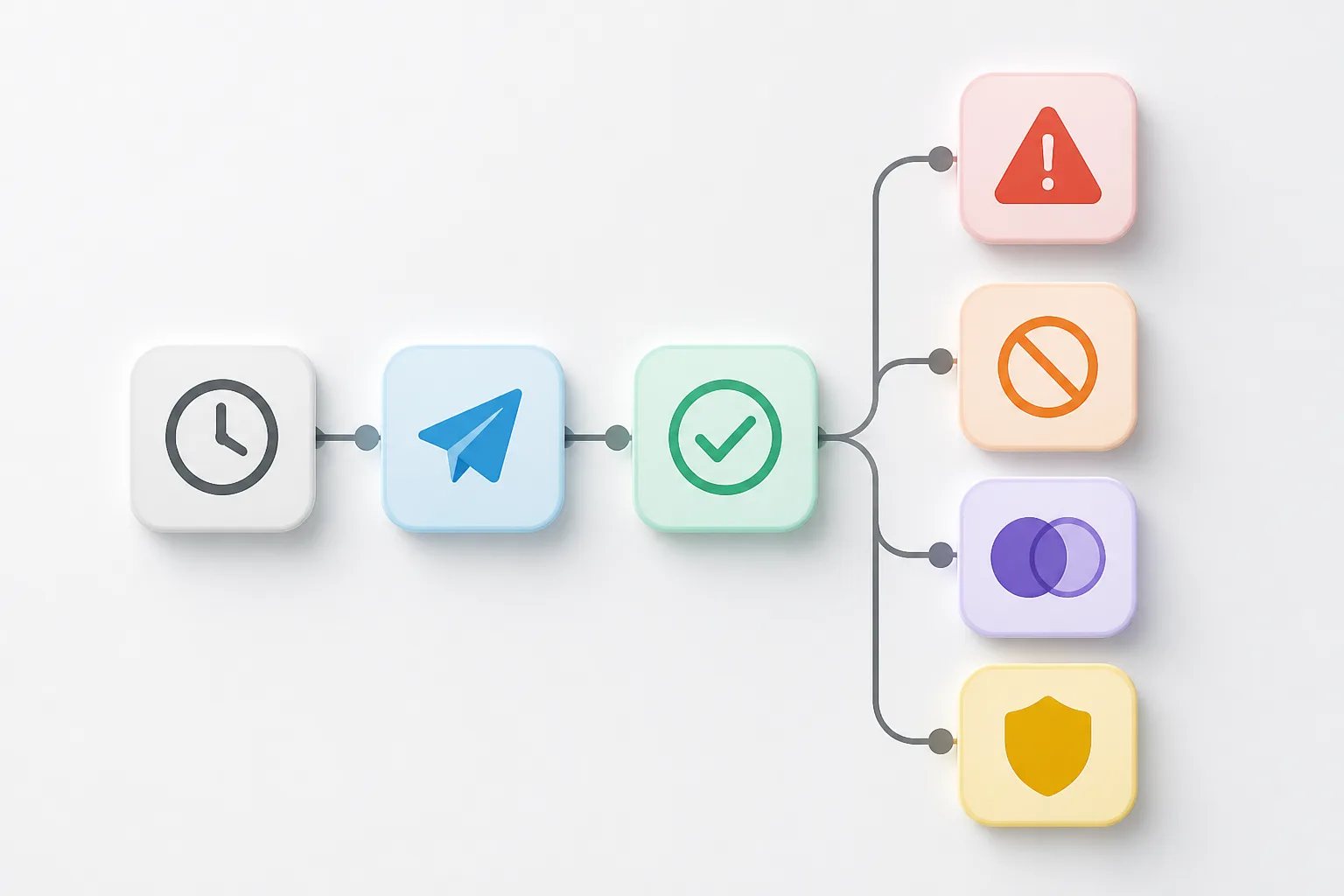
Our dashboard activity view makes those outcomes visible for both manual and BCC-triggered requests. A scheduled request is waiting for its saved delay, while sent confirms that the invitation was sent, not that a review was posted. A skipped duplicate means the customer was already contacted. A rejected request can indicate that the sending address needs authorization. Checking the status before creating another request helps prevent unnecessary follow-up. Our guide to review request status tracking explains what each outcome means.
Choose relevance over volume
The most effective timing rule is usually the simplest one: trigger one brief invitation after a completed experience, wait long enough for an honest opinion, and respect the customer’s choice. Start with a delay that reflects the actual evaluation window, test it from the recipient’s perspective, and revisit it when your customer journey changes.
When timing is based on what customers have genuinely experienced, the request feels like a natural follow-up rather than another automated message in their inbox.
Helpful answers
Frequently Asked Questions
Build review follow-ups around real customer milestones
Create an account to set a delay, use branded requests, and keep review-request timing connected to completed customer experiences.